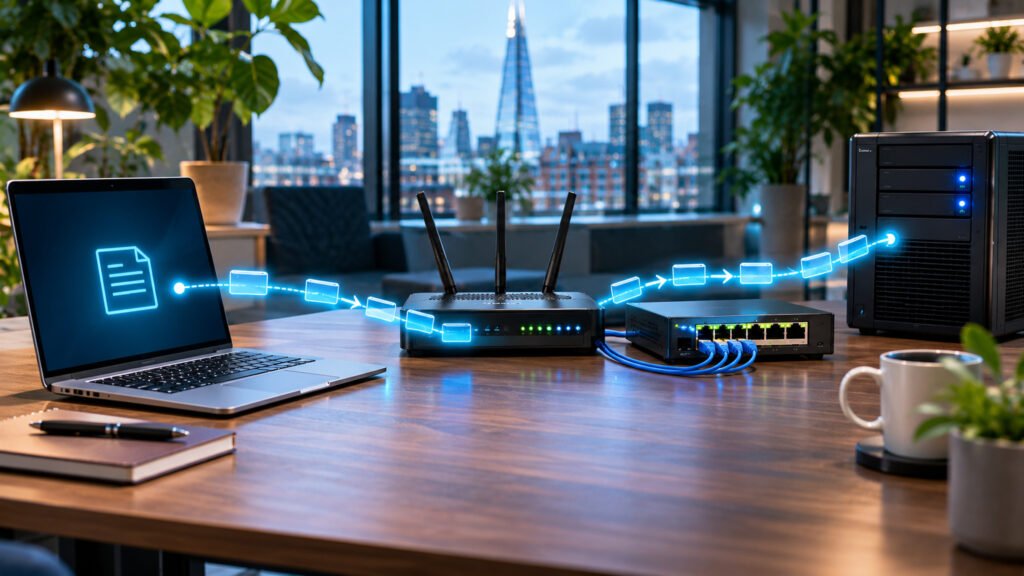
When you open a website, send a photograph or join a video meeting, your computer does not normally push the entire conversation through the internet as one enormous block. It organises information into smaller units that networking equipment can carry and forward. One of the most important units is the IP packet.
But who creates a packet? What is inside it? Does a packet look like a physical object? Why do packets get lost, and how do they reach a computer in another country? This beginner-friendly guide follows a packet from creation to delivery, with examples and practical ways to inspect traffic on your own network.
For the background concepts of IP addresses, routers, switches, DNS and subnets, see our companion guide: IP Addresses, Routers and Network Devices Explained.
An IP packet is a structured unit of information used to move data across Internet Protocol networks. It normally contains a header (delivery and control information) and a payload (what it carries). Your device’s networking software creates packets, routers forward them between networks, and the receiving device processes them. Delivery, ordering and retransmission depend on protocols above IP, such as TCP or QUIC—not on IP alone.
Everyday example: Imagine sending a 200-page document to an office overseas using a courier service. Instead of transporting the whole office filing cabinet, you send manageable envelopes. Each envelope carries addressing information and some contents. Network packets are similar, but they are digital structures, not physical envelopes.
1. What exactly is a packet?
A packet is an organised collection of bits (binary digits, written as 0 and 1) that a network protocol treats as a single unit. A byte is eight bits. In ordinary internet communication, an IP packet consists of an IP header followed by a payload.
The header includes fields that help network devices forward and process the packet. The payload holds data from a higher-layer protocol, such as a TCP segment or UDP datagram.
What does it look like? There is no tiny envelope travelling down a wire. In memory, a packet is a sequence of bytes. On copper Ethernet those bytes are represented by electrical signalling; over fibre by light; and over Wi-Fi by radio signals.
Why does it matter? Standardised packet formats let equipment from different manufacturers exchange information, even across separate networks. Without shared packet rules, routers would not know how to interpret the addresses and control information.
Where does it fit in the OSI model? An IP packet is principally a Layer 3 (Network) concept. The OSI (Open Systems Interconnection) model is a seven-layer teaching framework that separates networking responsibilities. Its layers are explained in Section 15 below.
2. Packet, frame, segment and datagram: are they the same?
These words are sometimes used loosely in conversation, but technically they describe different units:
| Term | What it means | Typical layer or technology |
|---|---|---|
| Bit | One binary value, zero or one | Representation and signalling |
| Byte | Eight bits | Files, memory and protocols |
| TCP segment | TCP header and a portion of the byte stream | Transport, OSI Layer 4 |
| UDP datagram | UDP header and application data | Transport, OSI Layer 4 |
| IP packet | IP header and its payload | Network, OSI Layer 3 |
| Ethernet frame | Link-layer headers/trailer surrounding the carried data | Data Link, OSI Layer 2 |
Everyday example: Your written letter is the application information. The internal envelope represents transport information. The courier’s delivery packaging represents IP addressing. The vehicle’s local shipping label represents the link-layer frame. The analogy is imperfect, but it shows why several kinds of “wrapping” can surround the same information.
3. Who creates packets, and when?
Your device creates outgoing IP packets through its operating system’s networking stack, although applications and hardware can influence how this happens.
A networking stack is the collection of software and protocols that handles communication. The operating system (OS) is the core software managing a computer, such as Windows, macOS, Linux, Android or iOS.
Suppose you upload a photograph from your laptop:
- Application: Your browser reads the image and prepares an upload request. An application is software you use to perform a task.
- Application security: For a secure website, encryption may protect the data using TLS (Transport Layer Security). Encryption converts readable information into protected ciphertext that requires the appropriate keys to interpret.
- Transport: Depending on the protocol, TCP (Transmission Control Protocol) or QUIC organises information for transport. TCP provides a reliable ordered byte stream; QUIC is a secure transport protocol that operates over UDP.
- Internet layer: The OS creates an IPv4 or IPv6 packet by adding IP header information around the transport data.
- Local link: The network interface transmits the packet using Wi-Fi or Ethernet framing and physical signals.
A network interface is the hardware or virtual component connecting a device to a network, such as its Wi-Fi adapter or Ethernet port.
Important: The application does not always manually build each IP packet. Normally it gives data to operating-system networking APIs, and the stack handles much of the packaging. Features such as TCP segmentation offload can also allow network hardware to finish some work, so captures taken on a sending computer may show unusually large apparent packets.
4. What information is inside a packet?
Think of two broad parts: header + payload.
| Part | Example information | Purpose |
|---|---|---|
| Source IP address | 192.168.1.25 |
Identifies the sending IP interface in the packet |
| Destination IP address | An address of the remote service | Indicates where the packet should go |
| Protocol / Next Header | TCP, UDP or another indicated protocol | Helps identify what is carried next |
| TTL / Hop Limit | Example: 64 | Limits how far a packet can keep being forwarded |
| Length information | Depends on IPv4 or IPv6 | Helps interpret packet size |
| Payload | TCP segment, UDP datagram, ICMP message, etc. | Carries the next protocol’s information |
The IP address is an identifier used for delivery across IP networks. In a typical home, it may resemble 192.168.1.25; learn how to identify yours in our IP-address guide.
An IPv4 packet commonly has a header at least 20 bytes long. A basic IPv6 header is 40 bytes long. Additional options or extension headers can change the overall layout. A byte is eight bits.
Can you see the header? Yes. Packet-analysis software can display fields such as source, destination, protocol and TTL. The application content may be encrypted and therefore not readable in plain text.
5. A real-world example: opening a website
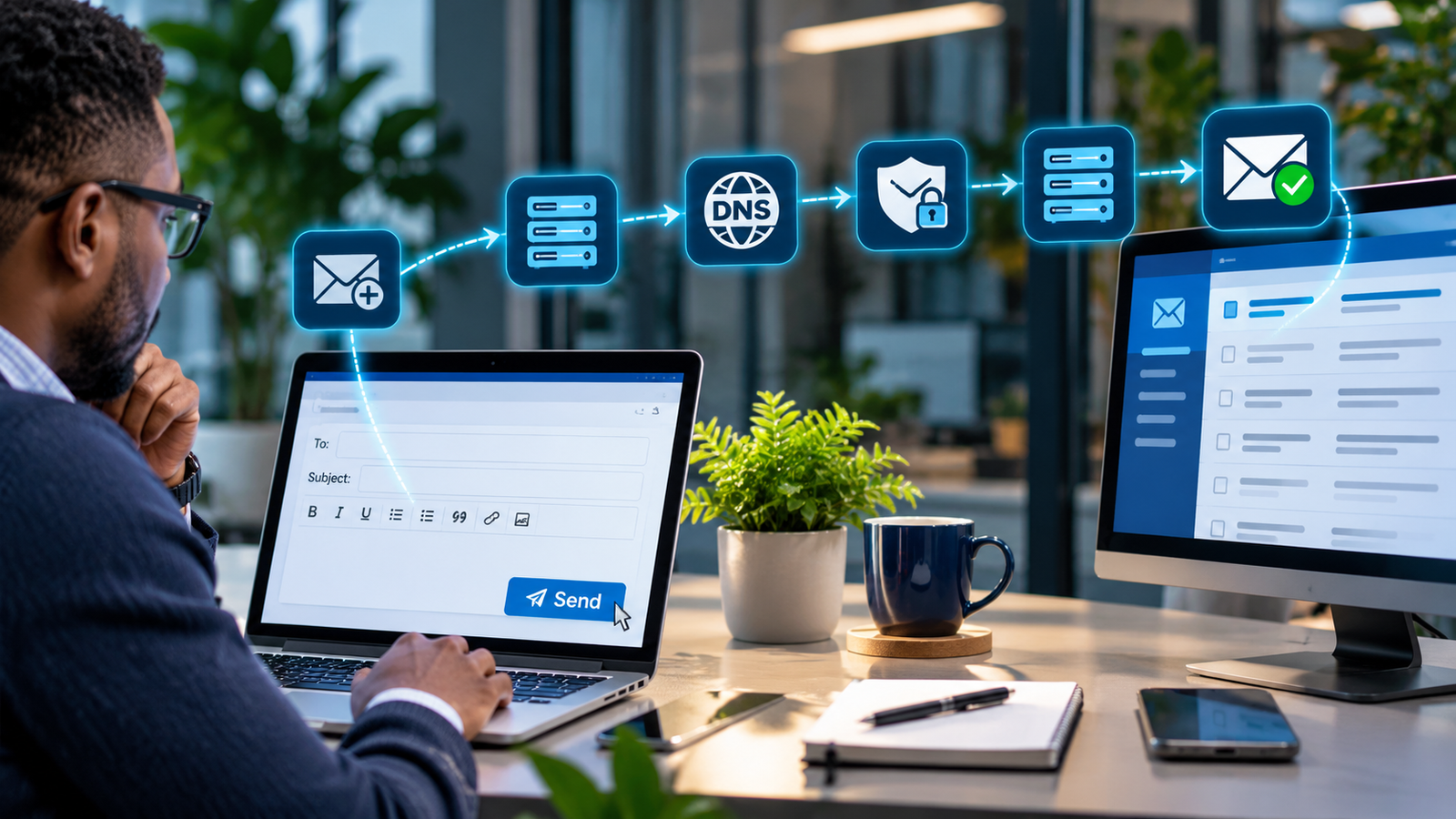
Suppose you type https://cholcom.com into a browser. HTTPS is Hypertext Transfer Protocol Secure, the web communication protocol protected by TLS. The browser may first use DNS (Domain Name System)—the system that looks up domain-related records—to find a suitable server IP address.
The following simplified sequence then occurs:
- Your device connects locally using Wi-Fi (wireless radio networking) or Ethernet (commonly wired networking).
- It identifies a destination IP address and consults its route information. A route tells the system which next network device can help reach a destination.
- Your browser establishes the required transport and security connection, for example TCP plus TLS for HTTP/2, or QUIC over UDP for HTTP/3.
- The browser sends a web request. Your network stack packages the relevant transport data inside IP packets.
- Your router forwards the outgoing packets towards another network; it is the device that connects IP networks and selects the next hop.
- Networks along the way forward the packets towards the destination.
- The server processes the web request and sends responses as its own outgoing packets.
- Your computer receives the packets, passes their contents up the networking stack and renders the webpage.
Why so many packets? A page may include HTML, images, fonts, style files and scripts. Different requests, responses, acknowledgements and control messages can all result in packet traffic.
6. Do packets travel as electricity, light or radio waves?
All three are possible, depending on the local communication medium:
- Copper cable: signals are electrical.
- Fibre-optic cable: signals are light.
- Wi-Fi / mobile networks: signals are electromagnetic radio waves.
The data is represented as digital bits, but the physical media carry signals that encode those bits. The same IP packet can cross several different link technologies along its journey.
Everyday example: A parcel’s destination can remain the same while it travels first by bicycle, then lorry, then aircraft. Similarly, the IP packet can travel over different physical technologies on different parts of its path.
7. How does a router know where to send a packet?
A router examines the destination IP address and consults its routing table, a list of destination networks and corresponding forwarding instructions. The chosen next hop is the following router or directly reachable destination on the path.
If your laptop is at 192.168.1.25 and the website is outside your local subnet (a defined portion of an IP network), the laptop normally sends the packet towards its default gateway, usually the home router.
Your router may perform NAT (Network Address Translation), meaning it modifies addressing information as traffic crosses a boundary. This commonly lets several private IPv4 devices share one public-facing IPv4 address.
Each router forwards the packet towards the next network. It does not usually know the entire journey in the way a courier might read a complete itinerary.
Can the path change? Yes. Packets may encounter different routes as network conditions or routing policies change, and return traffic need not use exactly the same path.
Read more about routers, gateways, NAT and routing tables.
8. What is TTL, and why can’t a packet circulate forever?
TTL means Time to Live. In IPv4, routers decrement the TTL field as they forward a packet. In IPv6, the comparable field is called Hop Limit. Despite the name “time”, modern forwarding uses it as a hop limit rather than a stopwatch.
If the value reaches zero, the router discards the packet, usually sending a diagnostic ICMP (Internet Control Message Protocol) message if allowed.
Why is it important? A routing mistake could otherwise cause packets to loop between routers indefinitely and waste network resources.
Everyday example: A courier has a maximum number of transfer attempts. If the delivery keeps circling between depots, it is stopped instead of circulating forever.
TTL is also relevant to tools such as tracert, which can reveal information about network hops by using packets with progressively different TTL or Hop Limit values.
9. How large is a packet? Understanding MTU and MSS
A packet does not have one universal size. Limits depend on protocols and links.
MTU (Maximum Transmission Unit) is the largest network-layer packet a particular link can carry without requiring it to be handled as a larger-than-supported unit. On conventional Ethernet networks, an IP MTU of 1,500 bytes is common.
MSS (Maximum Segment Size) is the maximum amount of TCP application-data payload sent in one TCP segment under the negotiated conditions.
For a basic IPv4/TCP connection on a 1,500-byte IP MTU, without IP or TCP options:
1,500 bytes – 20-byte IPv4 header – 20-byte TCP header = 1,460 bytes TCP payload
This 1,460 bytes is an illustrative MSS, not a universal value. IPv6, TCP options, VPN encapsulation and other technologies change the calculation.
Why it matters: Oversized packets may be dropped or require special handling. Networks generally work better when senders choose sizes compatible with the available path.
Everyday example: A parcel may fit through one delivery company’s loading bay but be too large for the next company’s smaller vehicle. Choosing appropriate parcel sizes avoids problems at the transfer point.
10. What is packet fragmentation?
Fragmentation happens when an IP packet is split into smaller IP fragments to meet a size constraint. It is not the same as the normal creation of multiple packets from a large application message.
In IPv4, fragmentation can happen at a sender and, under certain conditions, at a router. The Don’t Fragment (DF) flag can prohibit a router from splitting a packet.
In IPv6, routers do not fragment packets. Fragmentation, if used, is performed by the source, and the destination handles reassembly.
Reassembly is the process of combining IP fragments back into the original packet. It is separate from TCP’s reassembly of an application byte stream.
Fragmentation can make networks less efficient and can cause problems when fragments are lost. The preferred modern approach is generally to avoid it by discovering or otherwise choosing a usable packet size for the path. IETF RFC 8900 explains why fragmentation is considered fragile.
11. Do all packets arrive, and do they arrive in order?
No. IP is a best-effort delivery protocol. A packet may be delayed, discarded, duplicated or delivered out of order. IP itself does not promise that every packet arrives.
Common reasons include:
- Congestion: More traffic arrives than a link or device can process at that moment.
- Wireless interference: Radio conditions make some transmissions unsuccessful.
- Faults: A cable, router or network service stops working.
- Firewall rules: A firewall is a system that allows or blocks traffic based on defined rules.
- MTU problems: Packets exceed limits or necessary diagnostic messages are blocked.
TCP adds reliability using sequence numbers (position markers in its byte stream), acknowledgements (confirmation of received information) and retransmission (sending missing information again). TCP delivers a properly ordered stream of bytes to the application.
UDP (User Datagram Protocol) does not include those same built-in guarantees. Some applications use it directly; others, including QUIC, implement additional reliability mechanisms on top of it.
Everyday example: If ten numbered pages are mailed separately, some could arrive late or out of order. A reliable receiving process identifies missing pages and asks for replacements.
12. What are latency, bandwidth, jitter and packet loss?
These four terms often appear in speed tests and network monitoring reports:
| Term | Plain-English meaning | Why it matters |
|---|---|---|
| Latency | Delay between sending information and receiving a response or reaching a destination | High delay can make calls and interactive apps feel sluggish |
| Bandwidth | Amount of data a connection can carry per unit of time | Limits potential throughput |
| Jitter | Variation in packet delay | Can disrupt live audio and video |
| Packet loss | Proportion of packets that do not reach their destination | Can cause retransmissions, pauses and reduced quality |
How to identify them: Performance-testing tools often report latency in milliseconds (ms) and transfer rates in megabits per second (Mbps). A millisecond is one-thousandth of a second. A megabit is one million bits.
Do not confuse bandwidth with latency: a wide motorway can move many vehicles while still being a long distance from the destination.
13. Are packets encrypted? What can other people see?
An IP packet’s addressing information usually remains available to the network equipment that needs it for routing. The application content may be protected by encryption.
With properly configured TLS (commonly used for HTTPS), someone observing the network should generally not be able to read the protected web content without the necessary keys. But they may still see network metadata, such as some IP addresses, packet lengths and timing. Protection of domain-name information depends on the relevant technologies and configuration.
A VPN (Virtual Private Network) can provide an encrypted tunnel between endpoints; it changes who can observe which parts of the traffic, but does not remove every privacy or security risk.
Why this matters for small businesses: Encrypted connections, secure Wi-Fi, appropriate firewall rules and timely updates help protect data as it moves across networks.
14. Can attackers misuse packets?
Yes. Attackers can attempt to exploit network services or overwhelm them with unwanted traffic. For example, a DDoS (Distributed Denial-of-Service) attack floods a service with traffic from multiple sources to make it unavailable.
Packet spoofing is the act of forging addressing or other packet information, such as a misleading source IP address. This can be used in some attacks, although anti-spoofing controls and other protocol mechanisms can make abuse harder.
Not every unusual packet is malicious. Network troubleshooting often reveals routine retransmissions, resets or configuration messages that are completely legitimate.
Businesses should use a layered approach: network segmentation, access controls, monitoring, updates, secure remote access and appropriate protection against volumetric attacks.
15. How do packets relate to the seven OSI layers?
The OSI (Open Systems Interconnection) model is a conceptual framework with seven layers. An IP packet belongs primarily to Layer 3, but sending one involves several layers working together.
| OSI layer | Name | What happens in our example |
|---|---|---|
| 7 | Application | Browser creates an HTTP request |
| 6 | Presentation | Data encoding and related transformations are handled, often inside applications |
| 5 | Session | Session-related behaviour is organised, often by application protocols |
| 4 | Transport | TCP segment or UDP datagram is prepared |
| 3 | Network | IPv4 or IPv6 header is added: an IP packet exists |
| 2 | Data Link | Wi-Fi or Ethernet framing is applied for the local link |
| 1 | Physical | Signals carry the bits through radio, copper or fibre |
Encapsulation means adding the necessary protocol headers (and sometimes trailers) as data moves down the stack. Decapsulation means interpreting and removing those layers at the receiver.
A useful shorthand is:
Application data → Transport information → IP packet → Local-link frame → Physical signals
The internet actually uses the TCP/IP protocol suite, not seven completely separate OSI implementations. In particular, real protocols often combine functions associated with OSI Layers 5–7.
16. What happens at the receiving computer?
Receiving is not simply “glue packets together”. Several systems may have different responsibilities:
- The Wi-Fi or Ethernet interface receives and processes local-link frames.
- The network stack recognises the enclosed IPv4 or IPv6 packet.
- If IP fragments exist, the destination may reassemble them into an IP packet.
- The packet is passed to the appropriate transport protocol (TCP, UDP or another).
- TCP, where used, handles sequencing, reliability and delivering an ordered byte stream; QUIC has its own transport behaviour over UDP.
- Security protocols process protected information where applicable.
- The application interprets the received data and displays the webpage, file or message.
Everyday example: A mailroom receives labelled parcels, checks where each belongs and passes the contents to the correct department. The department then handles the actual work.
17. How do you see packets on your own computer?
A packet analyser is software that captures or examines network traffic. Wireshark is a popular, free, open-source packet analyser used by students and network professionals.
Beginner exercise: inspect a DNS request
- Download Wireshark from the official Wireshark website.
- Install the appropriate capture support if prompted, then open Wireshark.
- Select the network interface currently in use, such as your Wi-Fi adapter.
- Start capturing only on a device or network you are authorised to inspect.
- In a Windows Command Prompt, run
nslookup example.com. - Return to Wireshark and enter the display filter
dns. - Select a DNS packet and expand its IP, UDP or TCP, and DNS details.
- Inspect the displayed source/destination addresses, protocol and question/answer fields. Depending on your setup, some DNS activity may use encrypted DNS or be handled differently.
- Stop the capture and avoid sharing it publicly; capture files may contain private information.
What will you learn? You can see how the network represents a real request as protocol information rather than only as a browser page. Read the official Wireshark user guide for capture and filtering instructions.
A simpler Windows experiment
Open Command Prompt and run:
ping 1.1.1.1
This sends ICMP Echo Request packets to a specified address and reports whether replies arrive. Some hosts or firewalls block these messages, so a failed test alone does not prove the internet is down.
Try tracert example.com to investigate the path. It uses controlled probe lifetimes to reveal responding routers along the route; hidden hops may simply ignore probes.
18. What are packet capture files, and how can businesses use them?
A PCAP or PCAPNG file is a saved recording of captured network traffic. Network teams use such files to investigate intermittent connectivity, failed connections, packet loss, unusual traffic and protocol behaviour.
For example, if a business application repeatedly disconnects, a network engineer might inspect whether TCP retransmissions occur, whether a connection is reset or whether DNS requests fail.
Important: Captures can contain sensitive network information, identifiers and occasionally unencrypted content. Limit who can capture, retain or share these files, and apply your organisation’s privacy and security policies.
19. Practical checklist for small businesses
Before assuming a slow application needs more broadband, investigate the packet journey:
- Confirm the affected device is connected by Wi-Fi or Ethernet.
- Check its IP address and default gateway.
- Test DNS resolution separately from network reachability.
- Check network interface errors, wireless signal quality and congestion.
- Compare latency and packet loss at different times.
- Review firewall rules and any recent network changes.
- Consider VPN overhead and MTU issues if specific applications fail.
- Use packet captures only where authorised and protect them appropriately.
- Record your findings before replacing hardware or changing service providers.
Frequently asked questions
Does one email or photograph equal one packet?
Usually not. A large message or image generally results in many network transmissions. A single packet cannot be assumed to carry an entire file.
Do packets know the entire route?
Normally no. IP packets carry destination addressing information, while routers make forwarding decisions based on their routing information.
Is a packet the same thing as a TCP segment?
No. A TCP segment is a transport-layer unit that can be carried inside an IP packet. A packet may instead contain UDP, ICMP or other protocol data.
Does every lost packet get resent?
No. IP itself does not automatically retransmit lost packets. TCP and some higher-layer protocols can recover missing information, while some applications may tolerate loss.
Can packets be larger than 1,500 bytes?
Yes. Packet sizes depend on the technologies and configured path. An Ethernet IP MTU of 1,500 bytes is common, not universal.
Do routers read my messages?
Routers need routing information in packet headers. Properly encrypted application content is generally not readable merely by forwarding the packets, although metadata can remain visible.
Can two packets take different paths?
Yes. Network routes can differ, and packets can experience different delays. Applications should not assume a guaranteed route or order solely from IP.
Are Wi-Fi packets different from Ethernet packets?
The local framing and signalling differ. Both can carry IP packets, allowing the same internet-layer communication to cross different local-link technologies.
The key takeaway
A packet is not a mysterious object or a complete file travelling through the air. It is a structured unit of digital information created by networking software and represented by physical signals as it moves.
Headers identify how to handle and forward it. Routers move it between networks. Link technologies carry it across individual connections. Transport and application protocols determine how the information is used, protected and—where required—delivered reliably.
Understanding packet creation, forwarding, loss, fragmentation and reassembly gives you a practical foundation for troubleshooting networks and understanding why websites, cloud services and business applications sometimes perform poorly.
How CHOLCOM can help your business
Need help understanding slow connections, intermittent outages or unexplained network behaviour? CHOLCOM supports businesses with network diagnostics, secure connectivity, Wi-Fi and router configuration, security reviews and practical troubleshooting.
Get in touch with CHOLCOM to discuss your requirements. For the broader networking fundamentals, read our IP Addresses, Routers and Network Devices Explained guide.