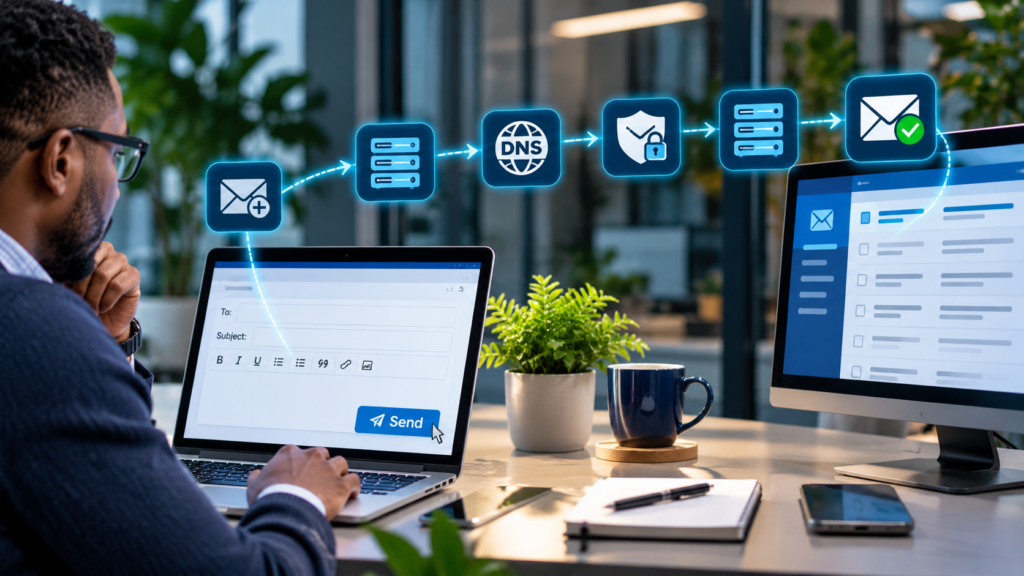
You write a message, add a recipient, and click Send and — often within seconds — it appears in another person’s inbox. It feels effortless. Behind that simple action is a chain of software, internet standards, DNS lookups, servers, security checks and decisions about where the message belongs.
For a small business, understanding that journey is useful beyond curiosity. It helps explain why invoices disappear into spam, why a website contact form stops working, why criminals can imitate a company’s address and why moving to a new email provider requires more than changing a password.
An email travels from the software that creates it to an outgoing mail service, across the internet to the recipient’s mail system, through security and policy checks, and finally into a mailbox — but delivery to a server does not guarantee inbox placement.
The building blocks are message format (headers, body and attachments), SMTP (transmission), DNS and MX records (where to send), mail transport agents (server-to-server routing), IMAP or provider APIs (reading and synchronising mail), and SPF, DKIM and DMARC (domain authentication).
1. First, an email is created
A message can begin in Outlook, Gmail, Apple Mail, a website form, a billing system, a customer relationship platform or an application. These are not all the same kind of software: a person usually interacts with a mail user agent (MUA), while an application may create and submit mail through an API or an SMTP client.
A typical email contains a visible From address, one or more To/Cc recipients, a subject, a body and perhaps files. Underneath, it also has technical headers such as Date, Message-ID, MIME-Version and Content-Type. MIME enables HTML formatting, international text and attachments by encoding them into a form that email systems can transport.
An important distinction: the From header is what readers see, while SMTP also uses a separate envelope sender (often called Return-Path when delivered) for routing non-delivery reports. These addresses can legitimately differ; that difference also matters when checking email authenticity.
2. What happens when you click Send?
- Submission: Your email app sends the message to its provider, typically using authenticated SMTP submission with TLS (commonly port 587), or a provider’s HTTPS API.
- Acceptance: The outgoing service validates the account, applies sending limits and policies, and accepts or rejects the message.
- Queueing: Once accepted, the outgoing service may place the message in a queue for processing and retrying.
- Routing: The service identifies the recipient’s domain, such as
example.com, and looks up its mail routing information. - Transfer: An outbound mail transfer agent connects to the recipient’s mail infrastructure over SMTP, generally on port 25 for server-to-server delivery.
- Processing and placement: The destination checks policy, authentication, reputation and content, then rejects, quarantines or accepts the message for storage or forwarding.
The “Sent” folder normally confirms that your client or service submitted a message; it is not proof that the recipient opened it, or even that it was delivered successfully.
3. DNS: the address book for mail servers
When a server needs to send to alex@example.com, it needs to locate the systems that accept mail for example.com. It queries the Domain Name System (DNS), particularly the domain’s MX (Mail Exchanger) records. An MX record points to mail servers and includes a priority value; lower numbers generally indicate preferred destinations.
The sending system resolves the chosen mail-server hostname to an IP address using A or AAAA records, connects to that server and attempts SMTP delivery. If that server is temporarily unavailable, another MX target or later retry may be attempted. A domain’s SPF, DKIM and DMARC settings are also published in DNS, but those records have different jobs from MX records.
Example: If a business migrates its mailboxes from one provider to another but leaves outdated MX records, incoming messages might continue arriving at the old system. Wrong SPF or DKIM records, on the other hand, can affect authentication of outgoing messages.
4. SMTP: the protocol that moves email
Simple Mail Transfer Protocol (SMTP) is the foundation of internet email transport. During an SMTP conversation, servers identify themselves, establish capabilities, identify the envelope sender and recipients, transfer the message data, and report whether the hand-off was accepted. Modern systems commonly use TLS to protect a connection when both sides support it.
You may see an SMTP response such as 250 (accepted), 421 (service temporarily unavailable), 450 (temporary mailbox or policy issue) or 550 (permanent rejection, such as an invalid address or policy block). The complete response, not just the number, is important when troubleshooting.
A 4xx response usually means a temporary issue that the sending service may retry. A 5xx response usually indicates a permanent failure that requires correction or intervention. Neither provides a universal diagnosis without the associated server text.
5. Delivery is not the same as inbox placement
When a destination server accepts an email, it may still run additional checks, move it to Junk, quarantine it, route it to another mailbox or apply organisation-specific rules. A user may therefore truthfully say “I never received it” even when message tracing shows that the recipient’s mail service accepted it.
Email providers consider multiple signals: whether a domain is authenticated, sending IP and domain reputation, complaint rates, suspicious links, attachment types, sending behaviour and the recipient’s own preferences. No legitimate product can guarantee placement in every inbox.
6. How recipients read and synchronise email
After delivery, users access their mailboxes through a web browser, desktop client or mobile app. IMAP generally keeps mail on a server and synchronises folders and flags across devices. POP3 traditionally retrieves messages and is less suited to modern multi-device workflows. Microsoft 365 and Gmail also use proprietary and web-based APIs for many first-party experiences.
Email apps may show messages instantly through push notifications, polling or synchronisation mechanisms. That user-facing experience is distinct from the SMTP hand-off between mail servers.
7. SPF, DKIM and DMARC: proving an email is authentic
Criminals can forge the visible sender name or address. Three complementary controls help receiving systems determine whether messages claiming to come from a domain are legitimate:
- SPF (Sender Policy Framework): A DNS TXT record identifies systems authorised to send using an envelope domain. SPF alone does not verify that the visible From address is genuine.
- DKIM (DomainKeys Identified Mail): The sender signs selected headers and the message body. The recipient uses a public key published in DNS to verify the signature and detect certain changes.
- DMARC: Checks whether SPF or DKIM passes with a domain that aligns with the visible From domain. It can request monitoring (
p=none), quarantine or rejection, and supports aggregate reports.
Use all three, rather than treating any one record as a complete anti-phishing solution. Start DMARC with monitoring, identify every legitimate sender (including websites, help desks, payroll and marketing platforms), then move to stronger enforcement when you have evidence that real mail is passing. Misconfigured authentication can block legitimate business communications.
Google’s published sender requirements differentiate ordinary senders from those sending more than 5,000 messages daily to personal Gmail accounts; higher-volume senders face additional SPF, DKIM, DMARC and unsubscribe requirements. The current requirements are available in Google’s official sender guidelines.
8. Encryption, spam filtering and malicious attachments
TLS in transit helps protect a connection between systems, but is not the same as end-to-end encryption: providers or intermediate systems may still process message content. Sensitive correspondence may justify approved message-encryption features or end-to-end encrypted services, alongside careful access controls.
A modern mail security stack may include malware scanning, malicious-link analysis, attachment sandboxing, impersonation protection, anti-spam rules and security alerts. Employees still need phishing awareness because a message can be technically authenticated yet malicious — for example, when an attacker compromises a legitimate account.
For business email, switch on multi-factor authentication, use separate privileged accounts, review auto-forwarding rules, restrict legacy authentication and regularly test account recovery. Email is often the gateway to password resets and financial transactions.
9. Transactional email, business email and marketing email are different
- Person-to-person business email: Staff correspondence and shared mailboxes, typically hosted in Microsoft 365, Google Workspace or another business mailbox platform.
- Transactional email: Receipts, password-reset messages and appointment confirmations generated by software, often sent through a specialist API or SMTP provider.
- Marketing email: Newsletters, campaigns and promotional journeys that require consent or another appropriate lawful basis, unsubscribe facilities and reputation management.
Using one service for everything can be convenient, but separating application notifications or bulk campaigns from core business mail can make performance, access rights and reputation easier to manage. If you send UK marketing messages, also review applicable UK GDPR and PECR rules before emailing contacts.
10. Why emails fail: common problems and what to check
- “Email address does not exist”: Verify the spelling and domain; inspect any 5xx non-delivery report.
- Mail stuck in Outbox: Check connectivity, client authentication, offline mode, attachment size and the provider’s service status.
- Messages go to spam: Check SPF/DKIM/DMARC alignment, sender reputation, content, list quality and complaint patterns.
- Website form stopped sending: Check application logs, the SMTP/API credential, sender-domain verification and rate limits; avoid relying on unauthenticated server mail functions.
- Incoming mail stopped after migration: Inspect the domain’s MX records, old-provider settings and mailbox provision.
- Temporary SMTP failure: Check whether the sending provider is retrying; record the response code and time before changing configuration.
- App says “sent” but recipient sees nothing: Ask an administrator to trace the message ID and inspect quarantine, transport rules and mailbox forwarding.
11. A practical email health checklist for small businesses
- Keep a current inventory of domains, mailbox providers and every service that sends email on your behalf.
- Check MX, SPF, DKIM and DMARC records after migrations or vendor changes.
- Enforce MFA, prioritising phishing-resistant methods for administrators and finance teams.
- Set up message trace, delivery alerts and DMARC aggregate reporting.
- Give marketing and transactional systems appropriate sending identities and unsubscribe handling.
- Define mailbox retention, backup and recovery requirements — a cloud mailbox is not automatically a complete backup strategy.
- Document what staff should do during an email outage, including an alternative communications channel.
- Review joiners, movers and leavers so former staff do not retain mailbox or forwarding access.
12. Recommended email services and tools
Choosing email technology should begin with the business need, not an affiliate offer. The following options are useful starting points. These are ordinary provider links, not CHOLCOM affiliate tracking links.
- Microsoft 365 Business: Business mailboxes, Outlook and integration with Microsoft’s identity, collaboration and security ecosystem. A natural fit for organisations standardising on Microsoft tools.
- Google Workspace: Gmail-based business email and collaboration. Google publishes a referral and affiliate programme; eligibility and commission terms depend on programme and territory.
- Proton for Business: Privacy-focused email and collaboration. Proton has an affiliate programme and separate channel opportunities.
- Cloudflare: DNS management, email routing and domain authentication visibility; forwarding is not a substitute for a full hosted mailbox.
- Brevo or MailerLite: Marketing email tools worth comparing for newsletters and automated campaigns. Check official partner terms before claiming a commission or publishing a tracking link.
Disclosure: Some links in future versions of this article may be affiliate links. If CHOLCOM earns a commission from a qualifying purchase, that will be clearly disclosed; recommendations should remain based on suitability, not commission size.
The practical takeaway Email is a chain of independent systems, not a single application. Understand message creation, SMTP submission, DNS routing, authentication, recipient filtering and mailbox access; then document how your organisation will troubleshoot each stage. Correct configuration and resilience matter more than whether a message appears in “Sent”.
Frequently asked questions
What is the difference between SMTP and IMAP?
SMTP submits and transfers messages. IMAP accesses and synchronises messages stored in a mailbox. In simple terms, SMTP is for sending; IMAP is generally for reading and managing received mail.
Why can an email be sent but not received?
“Sent” usually means the sending client or provider accepted it. The message may still be queued, rejected, blocked, quarantined or placed in Junk. Use a message trace or bounce report to identify the actual stage.
What is an MX record?
An MX record is a DNS record specifying which mail server or servers should receive email for a domain. Incorrect MX records can route incoming messages to the wrong service.
Do small businesses need SPF, DKIM and DMARC?
Yes, as a strong operational baseline. The records help receiving systems verify your domain and help reduce spoofing. They need to be configured for every legitimate sending service, not copied blindly from another business.
Does TLS mean my emails are end-to-end encrypted?
No. TLS protects network connections between participating systems. End-to-end encryption is a separate approach in which only intended endpoints hold the keys needed to decrypt the message.
Can I send website contact-form email through Microsoft 365?
Sometimes, but the right method depends on the application, licensing, permitted authentication methods and provider policy. A specialist transactional mail service may be better for application-generated messages.
Can an email reach the recipient server but go to spam?
Yes. Acceptance by a receiving server and inbox placement are separate stages. Messages may be delivered to Junk or quarantine after acceptance.
Do I need a specialist company to configure business email?
Not always, but expert support is useful when migrating domains, diagnosing recurring failures, securing multiple sending platforms or meeting operational and compliance requirements.
Where Cholcom fits
At CHOLCOM, we help businesses turn email from an invisible dependency into a secure, managed service. That can include professional mailbox setup and migration, Microsoft 365 administration, DNS and MX configuration, SPF/DKIM/DMARC reviews, phishing protection, transactional-email troubleshooting, retention and backup planning, and employee access controls.
Not sure whether your business email is securely configured — or why messages keep failing? Get in touch to discuss an email health check or managed email support.