You connect your laptop to Wi-Fi, click a website link and start working. Behind that simple action, your computer uses an IP address, communicates with a router, asks DNS where to find the website and exchanges information through several networks. What do these technologies look like, how can you find them, and why does each one matter?
This CHOLCOM beginner’s guide explains IP addresses, routers, switches, gateways, subnets, DNS, DHCP, MAC addresses, NAT and firewalls using ordinary home and small-office examples, plus practical Windows commands you can try yourself. The explanations focus on what each technology does, why it matters, how to identify it and its relationship to the OSI model.
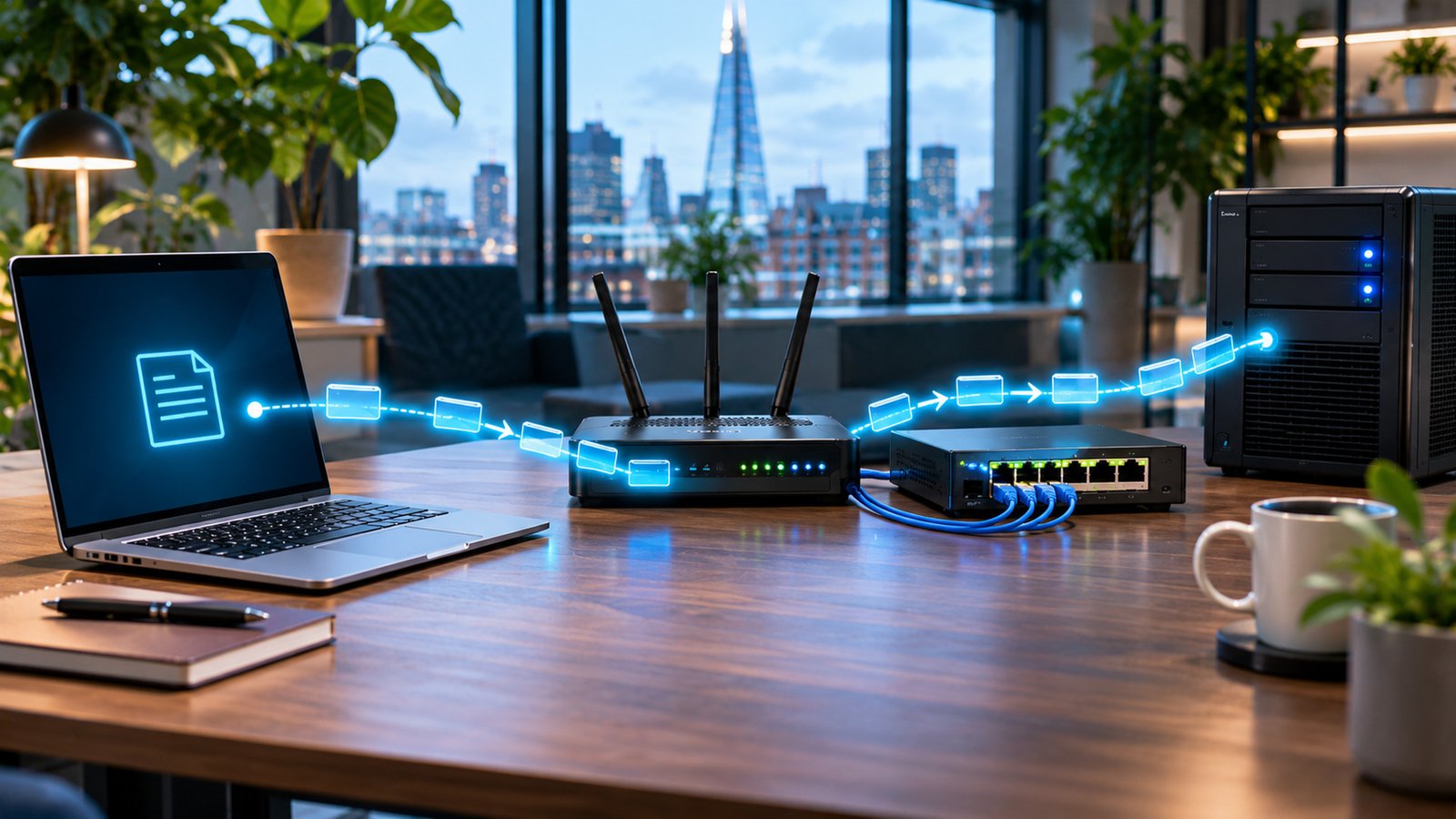
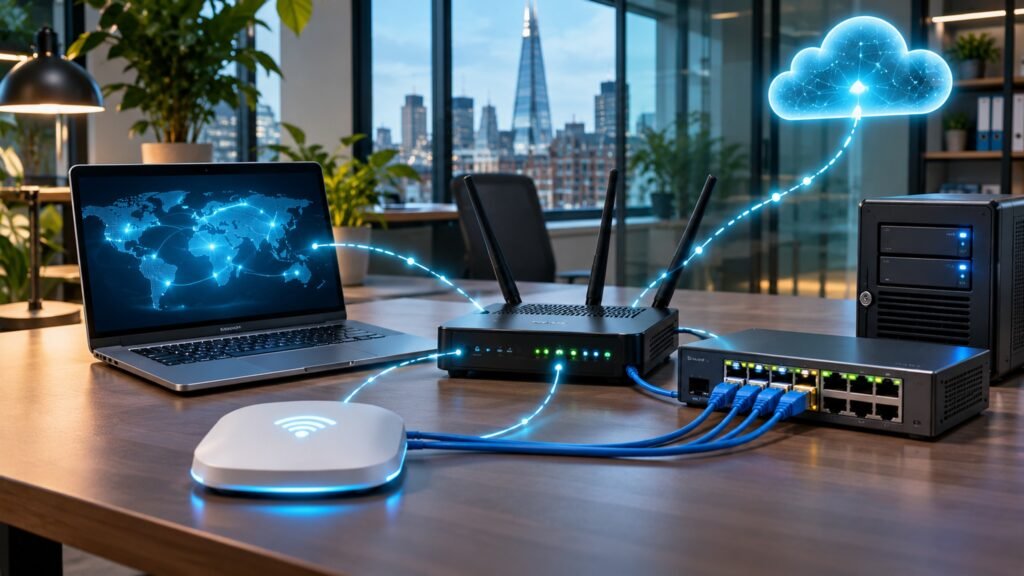
A network works because different technologies perform different jobs. Wi-Fi and Ethernet connect devices locally; IP addresses and routers help traffic find its way across networks; DNS resolves names; DHCP provides configuration; and firewalls control permitted connections. A single home broadband box may perform several of these roles.
Think of a town: houses need addresses; local streets connect neighbours; major roads join towns; and directories help you locate particular businesses. Networking uses a similar division of responsibilities.
1. IP addresses: what they are and how to find yours
IP means Internet Protocol, the addressing and packet-forwarding rules used between IP networks. An IP address identifies an IP interface on a network so other devices can address traffic to it. It is not necessarily a permanent identifier of a physical computer: a laptop can have different addresses on Wi-Fi, Ethernet and a VPN.
Recognise one: An IPv4 address has four decimal numbers, each from 0 to 255, separated by dots, such as 192.168.1.25. An IPv6 address uses hexadecimal numbers separated by colons, such as 2001:db8:1234:1::25 (an address reserved for examples). IPv6 offers a much larger address space.
Why it matters: routers need destination IP addresses to move packets towards the correct network. Without correct IP configuration, a computer can appear connected to Wi-Fi yet fail to reach other services.
Find it on Windows: press Windows + R, enter cmd, then run the command:
ipconfigUnder the active Wi-Fi or Ethernet adapter, inspect IPv4 Address, IPv6 Address, Subnet Mask and Default Gateway. On phones, select the connected Wi-Fi network in Settings to view its address details (menu wording varies).
Everyday example: an IP address resembles an address used to deliver a parcel, although IP addresses can change and are assigned to interfaces rather than being fixed labels for people.
OSI relationship: IP operates at Layer 3 — Network.
Private versus public IP addresses
A private IPv4 address is intended for use inside private networks and is not globally routed across the public internet. A public-facing IP address is what an external service may see when you access it, although VPNs, proxies and provider-grade address sharing can change that picture.
| Private IPv4 range | Where it is used |
|---|---|
10.0.0.0/8 | Internal networks |
172.16.0.0/12 | Internal networks |
192.168.0.0/16 | Home and office networks |
Two unrelated homes can both use 192.168.1.25 without an IP conflict because their private networks are separate. The ranges above are defined by RFC 1918. A dynamically assigned address may change; a static address is deliberately kept stable until reconfigured.
2. Routers: the devices that connect networks
A router is a device or software system that forwards IP packets between networks. A packet is a unit of network-layer information containing destination and source IP addresses, other control information and data. Routers inspect the destination and consult routing information to select an appropriate next hop.
Want to understand what a router actually forwards? Read our beginner-friendly guide to network packets: how they are created, routed, delivered and inspected .
Recognise one: home routers usually have a power socket, an Internet/WAN port, local Ethernet/LAN ports, indicator lights and sometimes Wi-Fi antennas. The broadband box may combine a router, wireless access point, switch and modem/ONT in one casing.
Why it matters: your laptop may send information to a printer on the same local network without routing, but reaching a computer on another IP network usually requires a router. Routers do not inherently need the public internet: two private company networks can be routed together.
Everyday example: local streets connect houses in one neighbourhood, while junctions connect different neighbourhoods. Routers are the junctions for IP networks.
OSI relationship: primarily Layer 3 — Network.
How to find your own router
Run ipconfig and read Default Gateway under your active adapter. A common example is 192.168.1.1, but your network may use something different. This address usually belongs to the router’s local interface. Do not assume it is the manufacturer’s default or change settings without permission.
3. Default gateways and routing tables
A gateway connects communication between networks or systems; in everyday IP configuration, the default gateway is the next-hop router used when a device has no more specific route for the destination. It is the normal way out of a home or office subnet.
Why it matters: a laptop can communicate locally but lose access to external networks if its default route is missing or wrong. For example, 192.168.1.25 may send an off-network packet to gateway 192.168.1.1.
How to identify it: use ipconfig for the gateway address and route print to see the Windows routing table. A routing table lists destinations, network prefixes, next hops and interfaces used to decide where traffic goes.
route printA default IPv4 route is commonly shown as 0.0.0.0/0. This matches destinations without a more specific entry. Everyday example: the default gateway is the main exit road from an estate. OSI: Layer 3.
4. Subnets, subnet masks and CIDR
A subnet (subnetwork) is a portion of an IP address space that is managed and routed as a network. An IPv4 subnet mask identifies which address bits form the network prefix. CIDR (Classless Inter-Domain Routing) notation writes the prefix length after a slash.
For example, 192.168.1.25 with mask 255.255.255.0 belongs to 192.168.1.0/24. The /24 means that the first 24 address bits define the network portion.
Why it matters: an organisation can separate staff, guest Wi-Fi and printers into different subnets, then use routing and firewall rules to control communication. How to identify it: check the IP address and subnet mask together in ipconfig; similar-looking addresses alone are not enough.
| Example network | Purpose |
|---|---|
192.168.10.0/24 | Staff devices |
192.168.20.0/24 | Guest devices |
192.168.30.0/24 | Printers |
Everyday example: subnetting is like dividing a city into organised districts with different access roads and rules. OSI: Layer 3.
5. MAC addresses: identifiers on local links
MAC means Media Access Control. A MAC address is a link-layer identifier used by network technologies such as Ethernet and Wi-Fi. A conventional 48-bit address looks like A4-B1-C1-23-45-67. It is written using hexadecimal digits (0–9 and A–F).
Why it matters: local network equipment can use MAC addresses to deliver Ethernet frames over a link. A frame is a structured block of link-layer information with local addressing and control information.
How to identify yours: run ipconfig /all on Windows and look for Physical Address under the correct adapter. Wi-Fi and Ethernet interfaces often have different addresses. Many phones and laptops use randomised MAC addresses for Wi-Fi privacy.
Everyday example: the IP address helps identify the destination across neighbourhoods; a MAC address helps with the local leg of the journey. OSI: Layer 2 — Data Link.
6. Switches: connecting wired devices on a LAN
A network switch joins wired devices, usually through Ethernet ports. An ordinary Layer 2 switch learns which source MAC addresses appear on which ports, then uses that information to forward frames efficiently.
How to recognise one: look for a box with multiple Ethernet sockets (often 5, 8, 16, 24 or 48) and small link/activity lights. Some are unmanaged and work with minimal setup; managed switches offer settings for VLANs, monitoring and access controls.
Why it matters: a small business can connect desktop computers, printers, access points and other wired equipment without requiring a dedicated router port for every device. A switch alone does not usually provide a path between separate IP subnets, though Layer 3 switches can route.
Everyday example: a switch resembles the internal mailroom in a building, forwarding deliveries to the right office. OSI: mainly Layer 2.
7. Wi-Fi access points, Ethernet and Bluetooth
Wi-Fi uses IEEE 802.11 wireless networking technologies to carry information over radio signals. A wireless access point (AP) allows laptops and phones to join a local network. An SSID (Service Set Identifier) is the Wi-Fi network name you see, such as CHOLCOM-Staff. A router and access point may be separate devices or combined.
Ethernet is a family of wired local networking technologies. Copper Ethernet uses electrical signals; fibre Ethernet uses light. Cables commonly terminate in eight-position modular connectors often called RJ45 connectors.
Bluetooth is another wireless technology, often used for nearby peripherals such as headphones and keyboards. A Bluetooth headset does not need to join your home Wi-Fi to play audio from a paired phone.
Why it matters: Wi-Fi and Ethernet can connect your computer to the same LAN; Bluetooth serves a different set of short-range connectivity needs. You can print to a compatible local-network printer without public internet access if the devices and their printing protocol support local communication.
How to identify: inspect the Wi-Fi network name in device Settings, check the Ethernet link light or adapter status, and check paired Bluetooth devices in the Bluetooth settings menu. OSI: physical/link functions are primarily Layers 1–2.
8. Modems and fibre ONTs: getting onto your provider’s network
A modem adapts communication to a provider’s access technology; the name originally comes from modulator–demodulator. A fibre-to-the-premises installation often uses an ONT (Optical Network Terminal), which terminates the optical access connection and commonly presents an Ethernet hand-off.
Why it matters: a router handles IP forwarding, while a modem or ONT handles specific access-network signalling. Some broadband providers combine these roles in one box.
How to identify: follow the incoming broadband cable: fibre normally reaches an ONT or integrated fibre gateway; other access types have their own equipment. Never look directly into a disconnected fibre connector. OSI: these access functions are primarily associated with physical and link technologies.
9. DHCP: how devices obtain their settings automatically
DHCP means Dynamic Host Configuration Protocol. It can automatically provide an IPv4 address, subnet mask, default gateway and DNS resolver details. Without it, you might need to configure every device manually. IPv6 networks may also use router advertisements and SLAAC (Stateless Address Autoconfiguration), DHCPv6 or both.
How it works: a typical IPv4 DHCP exchange follows Discover → Offer → Request → Acknowledge. The assigned address commonly has a lease, meaning an agreed period for which the configuration can be used.
How to identify: run ipconfig /all and check DHCP Enabled, DHCP Server and lease information. A DHCP reservation tells the server to offer a particular address to a recognised device; a manually configured static address is different.
Everyday example: hotel reception assigns rooms to arriving guests and keeps a record of the assignments. OSI relationship: DHCP is an application-layer protocol that supplies Layer 3 configuration.
10. DNS: turning website names into usable records
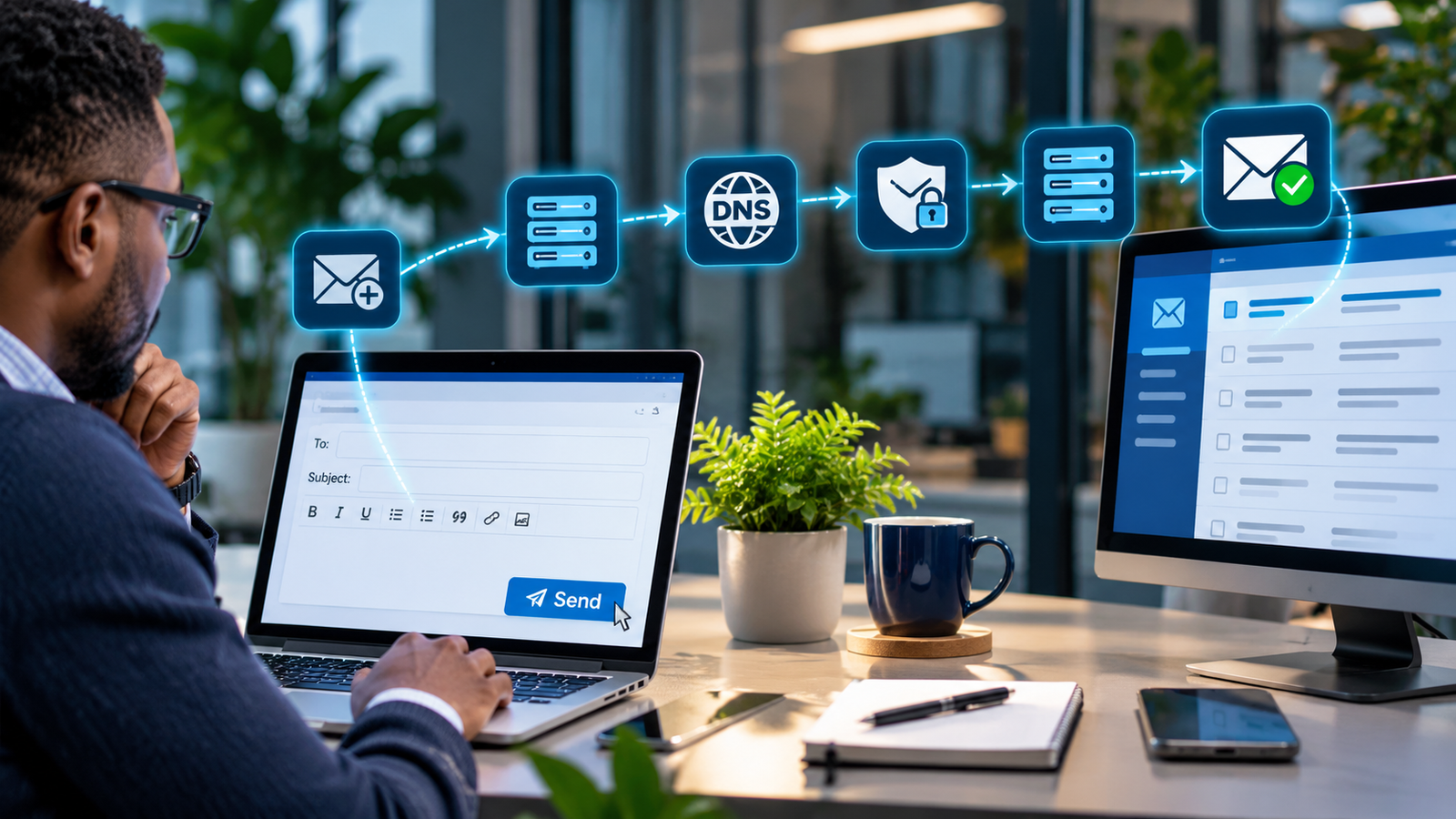
DNS stands for Domain Name System. It is a distributed naming system that lets applications look up records associated with names such as cholcom.com. Those records may identify IPv4 or IPv6 destinations, mail exchangers or other service information.
Why it matters: people remember cholcom.com more easily than numerical addresses. When DNS is misconfigured or unavailable, websites and email can fail even though basic connectivity still works.
How to identify and test it: open Command Prompt and run:
nslookup cholcom.com
nslookup -type=MX cholcom.com
The first query asks your resolver for information about the domain; the second requests mail-exchanger records. The answer depends on the domain’s current configuration.
| Record | What it means |
|---|---|
| A | Name associated with an IPv4 address |
| AAAA | Name associated with an IPv6 address |
| MX | Mail exchanger responsible for receiving mail |
| CNAME | Alias between DNS names |
| TXT | Text information including some validation and security records |
Everyday example: DNS is like a contact directory: you know the name, and the directory helps find the corresponding addressing information. OSI: application layer (Layer 7).
11. NAT: why several devices can share an IPv4 address
NAT means Network Address Translation. A common form, NAPT (Network Address and Port Translation), lets multiple devices with private IPv4 addresses share a public-facing IPv4 address by translating addressing and port information on outgoing and returning connections.
Example: a laptop at 192.168.1.10 and television at 192.168.1.11 may both access online services through the router’s outward-facing IPv4 address. The router keeps track of translation state so return traffic goes to the right connection.
Why it matters: it supports IPv4 address sharing. How to identify: compare the private IPv4 address shown by ipconfig with the address shown by a reputable public IP lookup service; the difference may indicate NAT, although proxies and carrier-grade arrangements also affect results. NAT is not a replacement for a firewall, and IPv6 does not inherently require it.
Everyday example: an office building shares one main postal address but has many internal offices. OSI: network-layer addresses, often with transport-layer port translation.
12. Firewalls: deciding which traffic is allowed
A firewall is software, hardware or a cloud service that applies security rules to allow, block or inspect network traffic. It can be built into your router, operating system or a dedicated network appliance.
Why it matters: a business should not expose every internal service to unwanted connections. Firewalls limit access according to the organisation’s requirements, although they do not eliminate all cybersecurity risks.
How to identify: on Windows, open Windows Security → Firewall & network protection. On a router, search its management interface for Firewall or Access Control settings. Do not disable protection simply to troubleshoot without understanding the consequences.
Everyday example: a security checkpoint checks who may enter particular areas. OSI: firewalls may inspect information at multiple layers depending on their design.
13. Ports and protocols: identifying the right service
A protocol is a set of agreed rules for communication. TCP (Transmission Control Protocol) provides an ordered, reliable byte stream; UDP (User Datagram Protocol) provides datagram transport without TCP’s built-in reliable delivery guarantees. A port is a number (0–65535) used by TCP or UDP to identify a communication endpoint for an application.
Why it matters: the IP address identifies a destination at the network layer; a transport port helps distinguish services such as web browsing and email. A device may host several services at the same address.
| Common transport/port | Typical service |
|---|---|
| TCP 80 | HTTP web traffic |
| TCP 443 | HTTPS web traffic |
| UDP or TCP 53 | DNS |
| TCP 25 | SMTP mail transfer |
| TCP 587 | Email submission |
| TCP 22 | SSH administration |
These are standard conventions; applications can use different ports. How to identify: on Windows, netstat -ano displays connections and listening endpoints. Everyday example: an IP address is the building address; the port is the department handling the request. OSI: ports and TCP/UDP at Layer 4; application protocols such as HTTP and DNS at Layer 7.
14. The complete journey: your laptop visits a website
- Connect: the laptop joins Wi-Fi or Ethernet on the local network.
- Configure: DHCP, IPv6 configuration or existing settings provide addresses, routes and DNS details.
- Resolve: the device uses DNS, if needed, to find an IP address for the website.
- Choose route: the laptop checks its routing table and normally uses its default gateway for external destinations.
- Transmit locally: Wi-Fi or Ethernet frames carry data to the next device; MAC addresses help local delivery.
- Forward: the router passes IP packets towards the ISP, sometimes translating IPv4 addresses using NAT.
- Cross networks: other routers forward packets towards the hosting server or a content delivery network.
- Exchange application data: HTTP protected by TLS (HTTPS), commonly over TCP or QUIC, transfers web resources.
- Display: your browser processes the response and renders the webpage.
Notice: your home devices do not all need Bluetooth; two devices on different networks do not automatically need the public internet either. They need a usable route and permitted communication. A private wide-area network (WAN) or a secure VPN over an appropriate underlying network may connect remote sites.
15. How these technologies relate to the OSI model
OSI means Open Systems Interconnection. The OSI model is a seven-layer conceptual framework for understanding networking functions. It is a teaching and troubleshooting model, not an exact description of how every modern protocol is implemented. The internet mainly uses the TCP/IP suite.
| Layer | Name | Examples in this article |
|---|---|---|
| 7 | Application | DNS, DHCP, HTTP, SMTP |
| 6 | Presentation | Data encoding and representation |
| 5 | Session | Application session management |
| 4 | Transport | TCP, UDP and ports |
| 3 | Network | IP addresses, routing, router, subnet, NAT |
| 2 | Data Link | Ethernet frames, MAC addresses, switching |
| 1 | Physical | Electrical, optical and radio signals |
Everyday example: sending a parcel requires the message, packaging, addresses, delivery stages and physical transport. Separating the jobs makes complex communication easier to understand. To follow what happens across all these layers, read CHOLCOM’s companion guide, How the Internet Works, once that article is published and its actual link is confirmed.
16. Practical Windows network inspection and troubleshooting
| Command | Use it to inspect |
|---|---|
ipconfig | IP address, mask and default gateway |
ipconfig /all | MAC, DHCP, DNS and detailed adapter settings |
nslookup cholcom.com | Domain-name resolution |
ping 192.168.1.1 | ICMP reachability to an example gateway; use your actual address |
tracert cholcom.com | Some intermediate hops towards a destination |
route print | Routing table |
arp -a | Cached IPv4-to-link-layer mappings |
netstat -ano | TCP/UDP connections and process IDs |
A practical test: if you have Wi-Fi but cannot open websites, first check your assigned IP and gateway, then test local connectivity, examine DNS resolution, and compare several destinations. A failed ping does not always prove an outage: networks may block ICMP probes.
Only run diagnostic commands against systems and networks you own or are authorised to administer.
17. Networking checklist for small businesses
- Keep an inventory of routers, switches, access points, firewalls and internet connections.
- Document IP address ranges, subnet masks, default gateways and important DNS settings.
- Use DHCP reservations or documented static addressing where appropriate.
- Separate staff, guest and sensitive systems where practical, with suitable access rules.
- Secure Wi-Fi with current supported encryption and strong credentials.
- Keep router and switch firmware up to date and protect management interfaces.
- Back up network-device configurations where supported.
- Monitor connectivity and plan how essential work continues during outages.
- Review firewall rules and avoid unnecessary publicly exposed services.
A well-documented network is easier to manage and secure than one where nobody knows what each address, port or device is doing.
Frequently asked questions
Does every device need an IP address?
A device needs suitable IP addressing for IP communication, but not every type of connection uses IP. Bluetooth headphones, for instance, may communicate without ordinary IP networking.
Can two devices have the same IP address?
Separate private networks can reuse private IPv4 addresses. If two devices on the same subnet use the same address, an address conflict may disrupt communication.
Is a router the same as Wi-Fi?
No. A router connects IP networks; Wi-Fi provides wireless local connectivity. One broadband device may do both.
Do I need the internet to print at home?
Not necessarily. A compatible laptop and network printer can communicate over the same LAN using a supported local printing protocol, if access is allowed.
Can computers in different offices communicate without the public internet?
Yes. A private WAN or other routed private connection can connect them. VPNs often use the internet but do not have to.
What is the difference between DNS and an IP address?
DNS maps names to information such as IP addresses; IP provides the addressing and routing mechanism used to reach network interfaces.
Why does my IP address change?
A DHCP server or ISP may dynamically assign an address that changes over time. Static assignments are intended to remain stable.
Does NAT replace a firewall?
No. NAT translates addresses, while firewall controls decide what traffic is permitted.
What if devices have similar IP addresses but cannot communicate?
Check subnet masks, VLAN or Wi-Fi isolation settings, routes and firewall rules. Similar numbers do not guarantee devices can communicate.
The key takeaway
An IP address helps identify a network destination; a MAC address helps with local-link delivery; a switch connects wired devices; a router forwards between IP networks; DHCP supplies configuration; DNS resolves names; NAT translates addresses; and firewalls control traffic. Each solves a different problem, and they often operate together.
When you can recognise these components and check their settings, networking becomes easier to understand, troubleshoot and secure.
How CHOLCOM can help your business
Need help making your business network secure, reliable and manageable? CHOLCOM can support network planning, router and Wi-Fi configuration, segmentation, connectivity troubleshooting, firewall reviews and practical cybersecurity improvements. Get in touch with CHOLCOM to discuss your requirements.