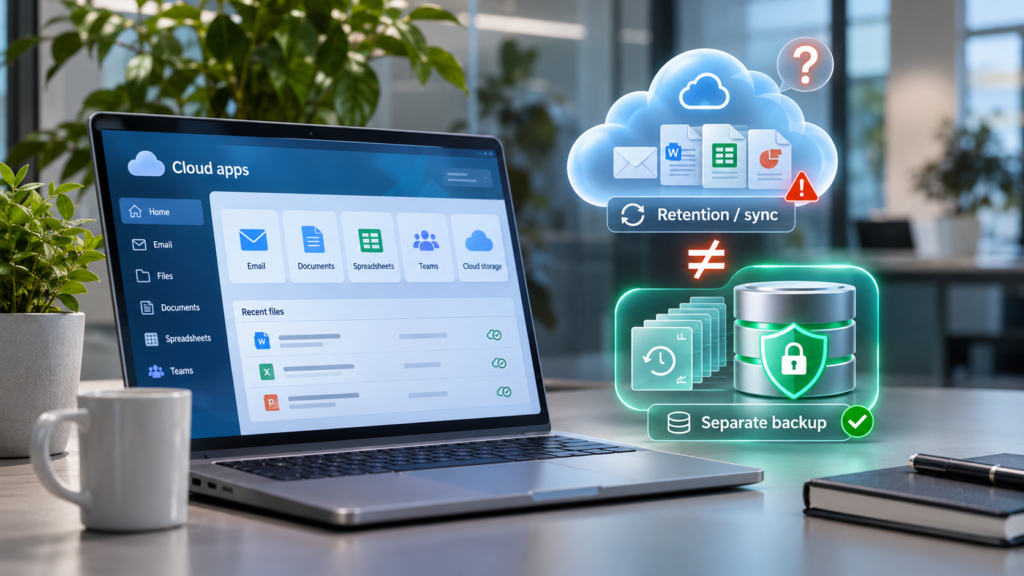
Ask most businesses how their email and files are backed up and you’ll hear the same answer: “It’s in Microsoft 365, so Microsoft handles that.” It’s an easy assumption to make — and only partly true.
Microsoft does an excellent job of keeping its service running. What it doesn’t promise is to give you back whatever you need, from whenever you need it, after a mistake, a departed employee or a ransomware attack. That part is your responsibility. This article explains where the gaps are and how to decide whether you need to close them.
Microsoft keeps the service available. Keeping a recoverable copy of your data is up to you.
This is often called the shared responsibility model. Microsoft looks after its data centres, hardware and the availability of the service — your mailbox will still be there if one of its servers fails. But your data — and what happens to it through deletion, overwriting or attack — is yours to protect.
What Microsoft 365 already gives you
Microsoft 365 isn’t defenceless. Out of the box, it has some useful safety nets:
Recycle bins
Files deleted from OneDrive and SharePoint can normally be restored for up to 93 days, provided nobody empties the recycle bin first.
Deleted email recovery
Deleted email can be recovered for a limited period — 14 days by default for items removed from Deleted Items, which administrators can extend to 30.
Version history
Office documents in OneDrive and SharePoint keep earlier versions, so an unwanted edit can usually be rolled back.
For everyday accidents noticed quickly, those features are often enough. The trouble starts with the cases they weren’t designed for.
Where the gaps are
- Mistakes noticed too late. Someone deletes a folder in March and nobody realises until the year-end accounts in June. The recycle bin has long since been emptied.
- People leaving. When a leaver’s account is deleted, their mailbox and OneDrive don’t stay around indefinitely. If nobody saved what mattered first, it can be gone for good.
- Ransomware. Malware that encrypts files on a synced laptop can sync the damage straight into OneDrive and SharePoint. Version history can help, but restoring a large amount of data this way is slow and patchy.
- Malicious deletion. An attacker in a compromised account — or an unhappy insider — can delete data and empty the recycle bins behind them.
- Point-in-time restores. “Put everything back exactly as it was last Tuesday” is not something the built-in tools are designed to do.
Retention policies aren’t the same as backup
Microsoft 365 can be set to retain data for compliance — keeping it so it can’t be permanently deleted for a set period. That’s valuable, but it’s designed for legal and regulatory needs rather than for restoring your business quickly. Finding and putting back a specific user’s files after an incident is usually far easier with a proper backup.
Do you need a separate backup?
Ask yourself three questions:
- If a key person’s mailbox or OneDrive disappeared today, how much would it cost you?
- Would you notice a deleted folder within a few weeks — or might it take months?
- If ransomware hit, how long could you operate without your files?
If any answer worries you, a dedicated Microsoft 365 backup is worth it. Microsoft now offers its own paid backup add-on, and there are many established third-party services. Whichever you choose, look for automatic daily backups, a copy stored separately from your live data, retention measured in months or years rather than days, and simple restores of a single file, a mailbox or a whole user.
The practical takeaway Microsoft 365’s built-in tools cover small, recent mistakes. For late discoveries, leavers, ransomware and malicious deletion, you need a separate, independent backup — and you need to test restoring from it.
Frequently asked questions
Isn’t my data already replicated by Microsoft?
Yes, for availability: copies protect against Microsoft’s own hardware failures. But a deletion or encryption in your account is replicated too, so it isn’t a substitute for a backup you control.
Does a backup cover Teams?
Teams chats are stored in Exchange mailboxes and Teams files live in SharePoint, so many backups include them — but coverage varies. Check exactly what a product protects before you buy.
How often should we test a restore?
At least every few months, and whenever something significant changes. A backup you’ve never restored from is a hope, not a plan.
What should we do before deleting a leaver’s account?
Decide what needs keeping, then transfer ownership of important files and mailbox content, or make sure your backup holds it, before the account is removed.
Where Cholcom fits
We help businesses work out what they actually need to protect in Microsoft 365, set up reliable automated backups, and — just as importantly — test that restores work before the day you need one.
Not sure whether your Microsoft 365 data is really protected? Get in touch for a straightforward review.