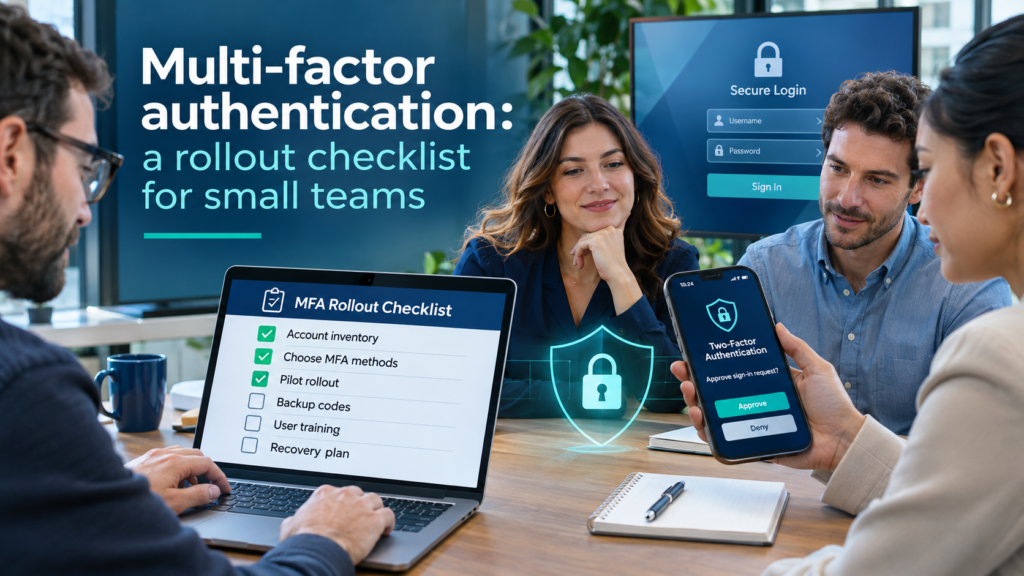
If you only make one security change this year, make it multi-factor authentication (MFA). It is the single most effective step a small business can take against account takeover — and it’s usually already included in the services you pay for.
Yet plenty of businesses still haven’t switched it on, or have switched it on for some people and not others. Usually that’s not because anyone decided against it; it’s because nobody wanted to be the one who locked the managing director out of their email on a Monday morning. This checklist is designed to get MFA rolled out across a small team without that drama.
A stolen password on its own should never be enough to get into your business.
MFA means that logging in needs something you know (your password) plus something you have (usually your phone, or a small security key). Passwords leak all the time — through phishing, data breaches at other websites, or simple reuse. With MFA in place, a leaked password alone is no longer a key to your systems.
Step 1: Decide which accounts come first
Don’t try to do everything on day one. Start where a compromise would hurt most:
- Email. Email is the master key — it’s where password resets land. Protect it first, for everyone.
- Admin accounts. Anyone who can change settings, add users or reset passwords in Microsoft 365, Google Workspace or your other systems.
- Finance and banking. Online banking, accounting software, payroll and payment platforms.
- Remote access. VPNs, remote desktop tools and anything that lets someone reach your network from outside.
- Everything else that supports it. CRM, file sharing, your website’s admin area, social media accounts.
Step 2: Choose the right method
Not all MFA is equal. From strongest to weakest:
Best: passkeys and security keys
Phishing-resistant. The login only works on the genuine website, so a fake login page can’t capture it. Ideal for admins and finance staff.
Good: authenticator app
An app such as Microsoft Authenticator or Google Authenticator approves logins or shows a short code. A strong, practical default for most staff.
Better than nothing: text message
Codes by SMS are far better than a password alone, but can be intercepted or redirected. Use them only where nothing else is offered.
For most small teams, an authenticator app for everyone — plus security keys or passkeys for administrators — is a sensible, affordable standard.
Step 3: Prepare before you switch it on
- Tell people what’s coming and why. A short, friendly message a week ahead removes most of the resistance.
- Check everyone has a suitable phone. Have a plan for anyone who doesn’t — a security key works well here.
- Set up recovery options. Make sure each person registers a second method, so a lost or replaced phone isn’t a lockout.
- Keep a secure emergency admin account. One break-glass account, protected with a security key and stored safely, so you can never lock yourself out of your own systems.
- Pick a quiet day. Not month-end, not the day before a big deadline.
Step 4: Roll it out in stages
- Start with yourself and IT/admin staff. Iron out any surprises before they reach everyone else.
- Then a small pilot group. A few willing volunteers from different parts of the business.
- Then everyone. Give a clear date, a one-page guide with screenshots, and someone people can ask for help that day.
- Then enforce it. Optional MFA quietly becomes no MFA. Once everyone is enrolled, make it required.
Step 5: Keep it working
- Add MFA to your new-starter checklist, so it’s set up on day one.
- Remove old phones and methods when people leave or replace devices.
- Teach staff to reject login prompts they didn’t start — and to tell you about them. An unexpected prompt means someone else has their password.
- Review admin accounts every few months and move them to the strongest method available.
The practical takeaway Start with email and admin accounts, use an authenticator app as your standard, give administrators security keys, set up recovery options before you begin, and roll it out in stages until it’s required for everyone.
Frequently asked questions
Will MFA annoy my team?
Less than you’d think. Most systems remember trusted devices, so people typically approve a login only occasionally, not every time they open their email.
What if someone loses their phone?
That’s exactly why you set up a second method and an emergency admin account before rollout. An administrator can then reset that person’s MFA once you’ve confirmed who they are.
Is MFA enough on its own?
It’s the most important single step, but not the whole picture. Keeping devices updated, limiting admin rights and training staff to spot phishing all matter too.
Does MFA cost extra?
Usually not. Microsoft 365 and Google Workspace include MFA, and authenticator apps are free. Hardware security keys are a modest one-off cost per person.
Where Cholcom fits
We help businesses plan and run MFA rollouts that don’t disrupt the working day: choosing the right methods, setting up recovery and emergency access, supporting staff through enrolment, and enforcing it once everyone is ready.
Want MFA switched on across your business without the Monday-morning lockouts? Get in touch and we’ll help you plan it.